

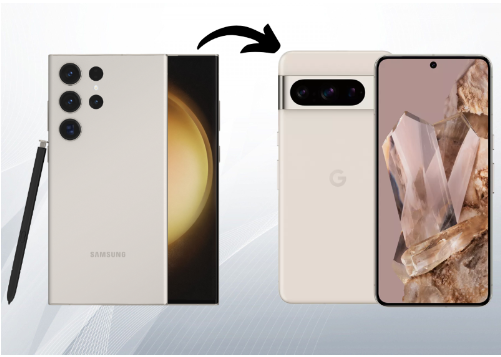
The modification in technology and personal preferences can compel users to switch from a Samsung S23 Ultra to a Google Pixel 8 Pro. Though it is an exciting journey of switching, it comes with some challenges in data transferring. Moreover, it raises questions about how to transfer data from Android to Android. However, several practical solutions are available for moving crucial data like photos, videos, and contacts.
This article will thoroughly discuss the top 5 ways to transfer data smoothly from Android to Android. These efficient and straightforward data transfer methods handle the difficulties of transferring data across different devices. Additionally, they ensure a smooth transition experience when we upgrade to other Android devices.
Part 1: 5 Ways to Transfer Data Between Samsung S23 Ultra and Google Pixel 8 Pro
Understanding the excitement and challenges of upgrading to a new device is important. The shift from one advanced smartphone to another adds some complications that lead to the risk of losing data. For this purpose, we’ve enlisted 5 effective methods to deal with these challenges. Also, these ways provide a smart plan to address common concerns and keep your valuable data safe.
Way 1: Wondershare MobileTrans
Wondershare MobileTrans is the preferred solution for a convenient data transfer experience. One of its useful features is its ability to move data from Android to Android, regardless of the brand. Whether you’re transferring data from Huawei to Samsung or Xiaomi, it simplifies the process. Plus, its one-click solution goes beyond the limitations of traditional methods without requiring Wi-Fi.
This software can transfer more than 18 types of data. Furthermore, it supports a wide range of mobile devices operating on both Android and iOS systems. This makes it a flexible choice for users with varied smartphone preferences. Here are the steps on how to transfer messages from Android to Android with MobileTrans to ensure the security of your crucial information:
Step 1. Utilize the Phone-to-Phone Functionality
First, download MobileTrans software through its official website and follow the installation instructions. Launch it on your system and proceed to the “Phone Transfer” tab from its homepage. Afterward, opt for the “Phone to Phone” function to transfer data from Android to Android.
Step 2. Connect Devices and Initiate the Process
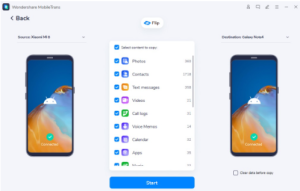
Next, create a link between the Samsung S23 Ultra and Google Pixel 8 Pro along with the computer through a cable. In the upcoming window, identify one device as the “Source” and the other as the “Destination.” Use the “Flip” button at the center to interchange their positions if necessary. Following this, select the preferred file type for transfer and move forward by hitting the “Start” button.
Step 3. Ensure the Connection for a Successful Data Transfer
You should ensure a steady connection between the devices during the entire process. Meanwhile, the software will enable smooth data transfer between Androids. Finally, a notification will indicate completion, and your transferred files will be available on Google Pixel 8 Pro.
Way 2: MobileTrans App
Wondershare MobileTrans App comes as a comprehensive mobile app for shifting between Android devices with complete data transfer. It can transfer up to 10 phone data types, including contacts, messages, music, apps, documents, etc.
In addition, this app ensures a smooth data transfer process when moving from an old Android device to a new one. Now, let’s explore how to transfer data from Android to Android with this compatible mobile app, regardless of phone brand.
Step 1: Begin by downloading and installing MobileTrans app on both Samsung S23 Ultra and Google Pixel 8 Pro. Open the application on the Samsung S23 Ultra, as it is your old phone, and choose the “Phone to Phone” option from the dashboard. Then, confirm the source for data transfer by tapping “Old Phone.”
Step 2: Proceed by specifying the targeted device; opt for “Android” to facilitate data transfer between Android devices. Now, you will be directed toward a new screen where you’ll find all your data types. Here, select your desired data and click the “Send” button to transfer data.
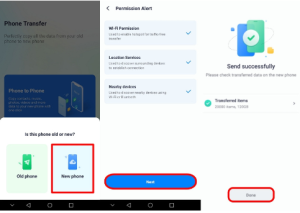
Step 3: After allowing the application to send data, proceed to your Google Pixel 8 Pro as a new device. On this Android, launch the app, select the “Phone to Phone” feature, and opt for the “New Phone” option for now. Now, you are prompted to grant the necessary permissions. Once permitted, connect your Samsung S23 Ultra and Google Pixel 8 Pro with a QR code. Your data will transfer seamlessly after developing a secure connection.
Way 3: Samsung Smart Switch
Samsung Smart Switch can transfer various data types from an old device to a new Samsung device. One notable feature is its ability to copy the layout and settings from the old device to the new one. In this way, users can reduce the need for manual adjustments. The following are the instructions on how to transfer data from Android to Android wirelessly with this phone transfer app:
Step 1. Activate Smart Switch on Samsung S23 Ultra and Google Pixel 8 Pro to initiate the data transfer. Now, from your old phone, select the “Send Data” option. Subsequently, directed to a new screen, opt for the “Wireless” option. During the process, ensure a maintained connection by keeping both Android devices closer to each other.
Step 2. In the next step, proceed to your new phone and tap “Receive Data” for a smooth data transfer process. Later, hit the “Galaxy/Android” as the source and make the connection between devices by selecting “Wireless.” Now, press “Allow” on your old phone after being notified to confirm the connection. Afterward, choose the desired data to move and press the “Transfer” button to get this data on the new phone.
Way 4: Google Drive
As a cloud-based storage solution, Google Drive plays a crucial role in simplifying data transfer. Its remarkable feature is its ability to synchronize important data across different devices smoothly. Plus, you can get a secure and centralized platform to upload and retrieve their data. In the following section, the detailed process of sending files from Android to Android is mentioned.
Step 1. Download Google Drive from the Play Store on Samsung S23 Ultra and launch the application on your phone. Then, sign into your Google account to directly connect it with Drive for data transfer. After accessing its main interface, tap the “New” button at the bottom, which opens a bottom-up menu. Here, opt for the “Upload” option that allows you to explore and upload Android files on Google Drive.
Step 2. Upon successfully uploading data to Drive, move to your Google Pixel 8 Pro. Open Google Drive on it and log in using the same Google account previously entered on the Samsung S23 Ultra. After syncing, you’ll see various data types within their respective folders on the application’s display. Select the “Three Dots” icon parallel to the uploaded file. From the menu, locate and choose the “Download” option to get files on Pixel 8 Pro.
Way 5: Google Backup
Now, we are moving on to the 5th way of moving data from the Samsung S23 Ultra to the Google Pixel 8 Pro. Google Backup is crucial in keeping your data safe and easily accessible. One standout aspect is its ability to automatically back up important data, such as app data and device settings, to the cloud. You can transfer data from Android to Android with Google Backup by following the below step-by-step guide:
Step 1. The process will begin after accessing the settings of the Samsung S23 Ultra. From the available options in settings, scroll down and tap on “Google.” Afterward, choose the “Backup” option from the provided services of Google. Later, hit the “Back Up Now” button to upload your device data to your Google account.
Step 2. You can recover a Google backup on an Android device during the initial setup or following a factory reset on a Google Pixel 8 Pro. For this, turn on the phone, click the “Start” button, and agree to the terms and conditions. Connect your Pixel 8 Pro with a stable network connection. Afterward, a stage asks your permission to copy apps and data and hit the “Next” button to proceed.
Now, tap “Can’t Use Old Device” and log in with the same Google account you used in Samsung S23 Ultra. You can see the available backups on the screen now. Choose the desired backup and opt for the apps you want to recover. Finally, hit the “Restore” button for successful data transfer to your Google Pixel 8 Pro.
Part 2: Comparison Between the Data Transfer Methods to Transfer Between S23 Ultra and Pixel 8 Pro
Each approach to sending data between the Samsung S23 Ultra and the Google Pixel 8 Pro comes with its unique features and limitations. All methods cater to different preferences and need to move data from Android to Android. Now, let’s explore the comparison to distinguish the features of each method to find the optimal solution for data transfer.
| Metrics | Wondershare MobileTrans | MobileTrans App | Samsung Smart Switch | Google Drive | Google Backup |
| Efficiency | Highest | Highest | Moderate | Moderate | Moderate |
| Transfer Rate | MobileTrans allows for a direct and swift transfer of various data types between devices at high speed. | Its focus on simplicity and efficiency contributes to a relatively quick transfer speed. | While it generally provides a smooth transfer experience, the speed may depend on factors like data size and the devices involved. | Google Drive relies on internet connectivity for data transfer and can be influenced by upload and download speeds. | Google Backup is integrated into the Android OS, and its transfer speed is influenced by internet speed. |
| Easy-to-Use | Easiest | Easiest | Easy | Easy | Easy |
| WhatsApp Messages | ✓ | ✓ | ✓ | X | ✓ |
| App Data | ✓ | ✓ | ✓ | X | ✓ |
| Wi-Fi/Internet Freedom | ✓ | ✓ | X | X | X |
As we go through the comparison table, it is essential to highlight that Wondershare MobileTrans is an excellent choice. With its comprehensive solution supporting various data types, it facilitates cross-platform transfers. So, it proves to be a versatile and trustworthy option for a smooth transition between these Androids.
Conclusion
There are various methods to consider when transferring data from the Samsung S23 Ultra to the Google Pixel 8 Pro. We have discussed the 5 best methods to move data from Android to Android. Among these methods, Wondershare MobileTrans is the preferred choice for comprehensively sending files from Android to Android. Also, its ability to handle diverse data types and cross-platform transfers makes the process effortless.
